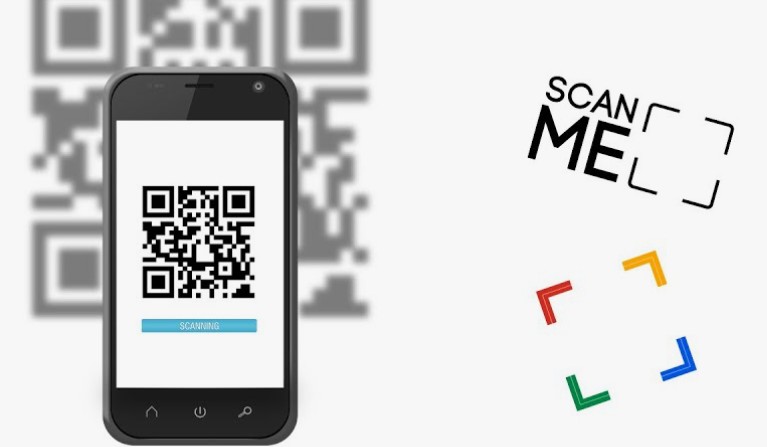
How to use a single QR code for links to the App Store and Google Play
Smart App Links via One Code
Mobile users expect immediate convenience when discovering new applications on event banners, packaging, or printed flyers. Modern dynamic routing allows publishers to bridge the gap between offline media and digital storefronts seamlessly. By taking advantage of the App Link option from UseQR https://useqr.com/, creators can instantly direct scanner traffic straight to the correct native store. A single flexible matrix on your promotional poster intelligently detects the smartphone operating system and opens either the Apple App Store or Google Play Store instantly.
Fact: Dynamic routing matrixes reduce user friction significantly, boosting download conversion rates by up to thirty percent compared to static destination labels on print media.
Initial Setup
Configuring your multi-platform smart link requires only a few structured steps. First, copy the exact store destination links for both your iOS app and Android app directly from their respective developer dashboards. Paste both web addresses into the dedicated platform routing interface. Once configured, generate your unified access graphics. Test the newly generated pixel grid thoroughly across multiple physical devices, ensuring seamless redirection on both Apple and Android environments before printing mass quantities.
Verification Checklist
Before sending your materials to high-volume print production, run through this practical checklist to guarantee flawless execution:
- Confirm both store destination URLs are live, fully functional, and pointing to public releases.
- Verify global regional availability so international users do not land on restricted store pages.
- Test scanning functionality under diverse lighting conditions, angles, and distances.
- Check device fallback behavior to ensure desktop scanners land gracefully on a custom landing page.
Fact: Apple devices natively handle smart redirection protocols directly inside their built-in camera applications without requiring any third-party scanner software.
Best Practices
Always display the legible app name prominently right beside or directly beneath your printed graphic element. This practice builds immediate brand recognition, reassures cautious users, and provides a clear manual search alternative if camera permissions are disabled. Placing a versatile QR code on physical marketing assets removes unnecessary friction from the user journey. By combining intelligent device detection with clean visual labeling, application publishers maximize campaign engagement, improve tracking accuracy, and deliver a polished modern brand experience across every print Touchpoint worldwide.
Author